ELRS Custom Telemetry
Why Custom Telemetry
The ELRS (which uses the Crossfire protocol) has a limited array of parameters that can be transferred. Many of these values are not very applicable to a helicopter (as opposed to drones). Other values such as headspeed (quite important for our helicopters) are not available. In Rotorflight 2.0 returning some of our more important parameters back to the Tx was achieved by ELRS Telemetry Re-use however, this was also limited.
Custom telemetry has been implemented for ELRS in Rotorflight 2.1. This allows many more sensors than was previously possible with CRSF. Currently there are over 100 sensors to choose from, and a maximum of 40 sensors can be used in total. With the ELRS configurable telemetry ratio, the sensors can be updated up to 20 times per second.
Note: ‘Telemetry Reuse’ (from Rotorflight 2) has been removed as it is no longer required
- EdgeTX
- ETHOS
EdgeTX

1. Enable CRSF custom telemetry
To set up ELRS custom telemetry:
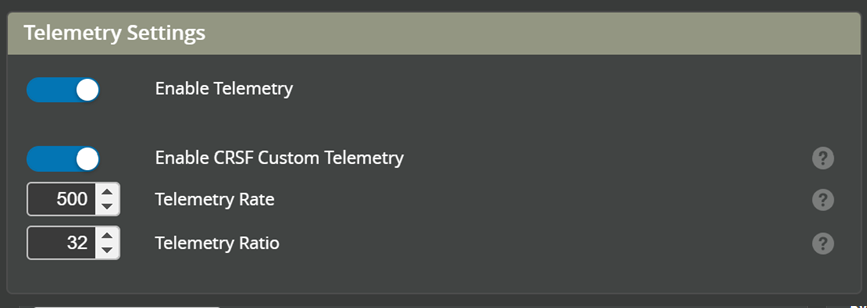
- Enable telemetry (This enables telemetry for all receiver types)
- CRSF Custom Telemetry (This enables the ELRS custom)
This is located under the Receiver tab in Rotorflight Configurator.
2. Set ELRS Packet rate
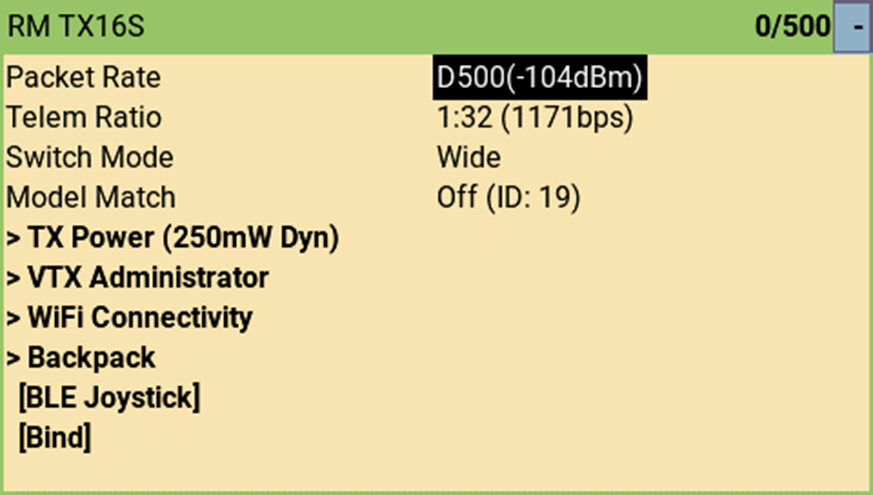
Set ‘Telemetry Rate’ to match the ‘Packet Rate’ you’ve set for ELRS (500 in the example below). Then set ‘Telemetry Ratio’ to match the ‘Telem Ratio’ you’ve set in ELRS (32 in the example below). The screenshot below is from Express LRS Lua script’s main screen
3. Choose Sensors
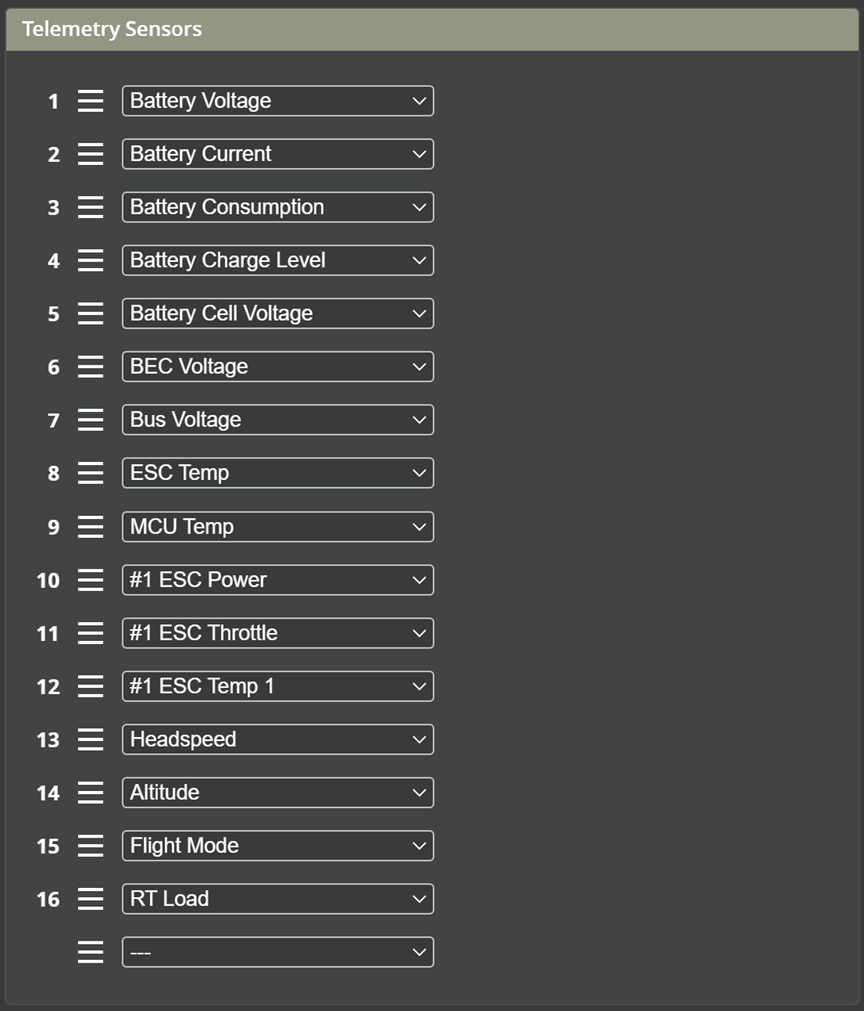
Next, select the sensors you want enabled. Each added sensor can be dragged up and down to change their order. You can freely choose whatever parameters you wish to be visible on your transmitter.
4. Download telemetry LUA Script
NOTE! Lua script is required for Custom Telemetry Custom telemetry requires the radio to run a telemetry Lua script in the background. You need to install all the Lua scripts coming with the release, and then enable rf2tlm.lua as a ‘Custom Script’ in your EdgeTx model. The steps below explain how to to this and discover the newly added sensors on your EdgeTx radio.
Download the latest Lua script HERE

5. Add LUA to SD card
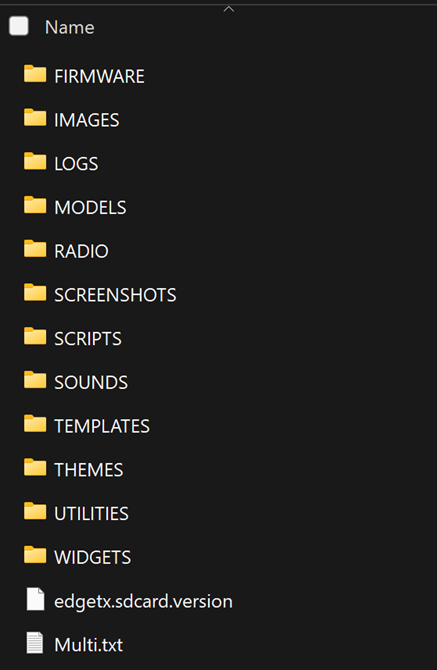
- Copy the ‘Script’ folder from the zip file into your EdgeTx radio’s SD card (root directory). There will be a Scripts folder already in your SD card. You can safely overwrite any existing files. (Note: As with any upgrades, ensure you have already backed up your SD card in case anything goes wrong) Contents of the zip file:
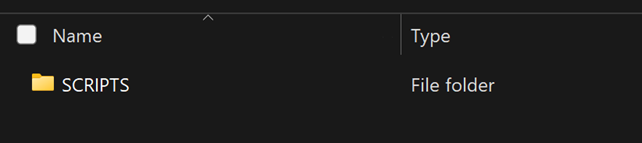
Contents of your SD card should look something like this:
6. Enable Custom Scripts on Tx
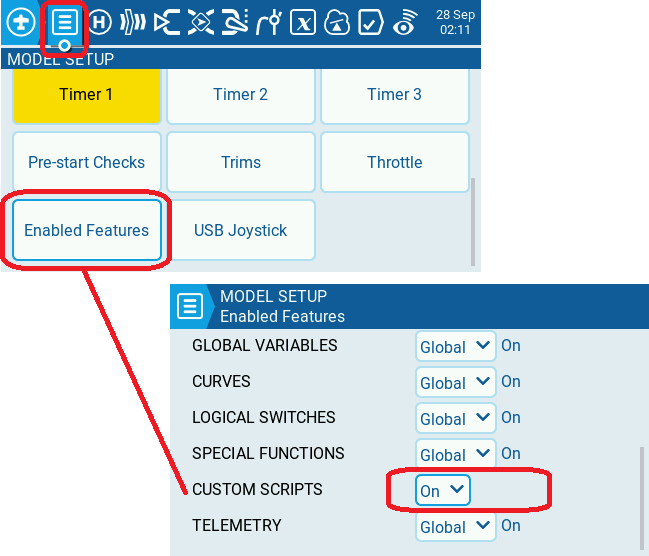
- From the Model Setup tab select Enabled Features and enable Custom Scripts.
If this is not visible on your radio you will have to Update your Version of EdgeTX. Update your EdgeTX firmware
7. Load Custom Script
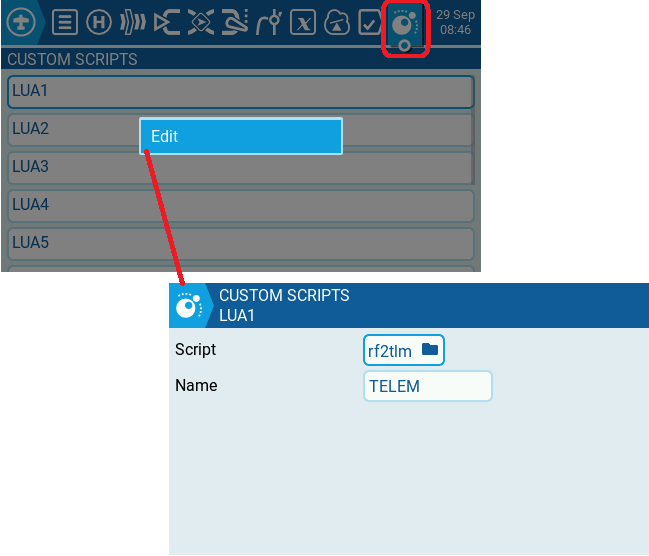
Still on your EdgeTx radio, navigate to Model settings -> Custom Scripts page. Long press on the first spare and create a new custom script as below for rf2tlm.lua. You can give it any name you like.
8. Discover telemetry
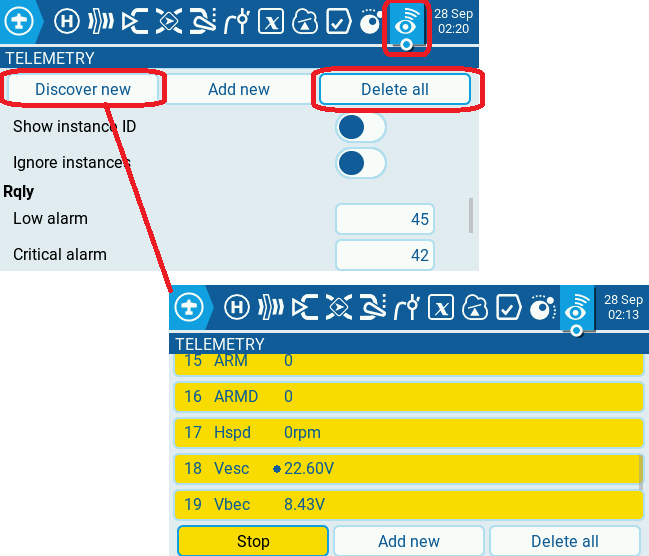
Finally, on your EdgeTx radio, navigate to Model settings -> Telemetry page and Delete All sensors that you may have previously discovered. Then Discover New sensors
Note - ensure your helicopter is powered up AFTER selecting 'Discover New' for sensors to be discovered in the correct order